There is no denying that Claude Code is currently the number one coding AI agent on the market. It reads entire codebases, writes and debugs code autonomously, manages git workflows, and runs commands through natural language.
But here is the problem most people run into: they skip the setup.
They install it, open a terminal, start prompting, and within a few sessions they are fighting context limits, repeating instructions, losing work between sessions, and wondering why the AI keeps forgetting what they told it yesterday.
The issue is not Claude Code. The issue is that nobody taught them how to set it up properly. A well-configured Claude Code environment is the difference between an AI that assists you and an AI that builds for you.
This guide walks through every step. From choosing the right tool to building multi-agent workflows. No fluff. No theory. Just the setup that actually works in production.
Step 1 Pick the Right Tool First
Before you touch a terminal, understand which Claude tool fits your use case. Anthropic offers three distinct surfaces, and each one is designed for a different kind of work.
Claude Code is the autonomous agent. It lives in your terminal and operates directly on your codebase. It reads files, writes code, runs commands, manages git, and debugs issues. This is what you use when you are building software.
Claude AI is the chat interface at claude.ai. Use it for research, brainstorming, connecting to external tools through MCPs (Model Context Protocol), and conversational work that does not require direct filesystem access.
Cowork is for document-level productivity. When agents need to draft reports, build documents, or collaborate on written content, Cowork is the right surface.
Most people default to the chat UI for everything. That is a mistake. If you are writing code, use Claude Code. If you are researching, use Claude AI. If you are building documents, use Cowork. Picking the right tool before you start eliminates half the friction.
Step 2 Install Claude Code
Installation takes thirty seconds. Open your terminal and run this:
curl -fsSL https://console.anthropic.com/install.sh | bashOnce installed, navigate to your project directory and initialize:
cd your-project
claude
/init
The /init command generates your CLAUDE.md file. This is the most important file in the entire setup. It is persistent memory for your codebase. Every time Claude Code starts a new session, it reads this file first. Think of it as the instruction manual that your AI agent reads before doing anything.
If you do nothing else from this guide, get this step right. A good CLAUDE.md file transforms Claude Code from a generic assistant into a specialist that understands your project, your patterns, and your preferences.
Step 3 Structure Your Project for Ai
A well-structured project directory is the difference between Claude Code that guesses and Claude Code that knows. Here is the directory structure that works in production:
your-project/
  CLAUDE.md                    # Master instructions (always loaded)
  .claude/
    settings.json              # Project-level settings and hooks
    settings.local.json        # Personal settings (gitignored)
    rules/                     # Behavioral rules (always loaded)
      coding-standards.md
      plans.md
      session-management.md
  Claude Management/
    plans/                     # Archived implementation plans
    daily-logs/                # Session reports
    decisions/                 # Architectural decision records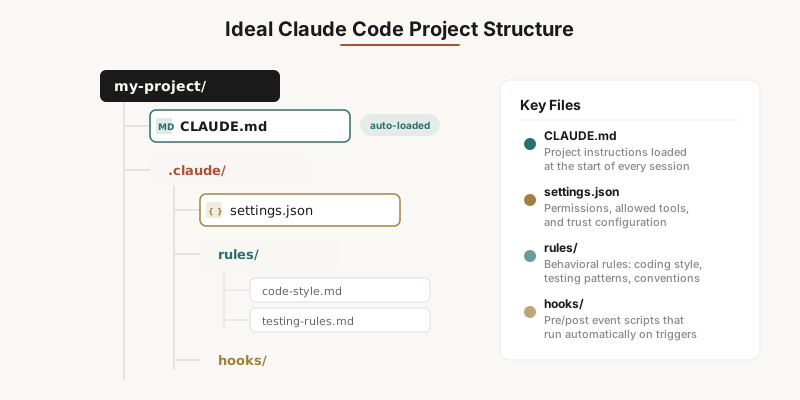
Every file in .claude/rules/ is automatically loaded at the start of every session. This means you can define coding standards, plan archival rules, and session management behaviors once and never repeat them.
The Claude Management/ folder gives you organizational memory that survives across sessions. Plans get archived before implementation. Session reports get saved before context compaction. Decision records capture the why behind architectural choices.
This structure is not theoretical. It is what we use at uCreateWithAI to manage a 236-page application with 176 database models across 26 development phases.
Step 4 Set up Hooks for Automation
Hooks are the automation layer that most people never discover. They let you run scripts automatically in response to Claude Code events, eliminating manual work.
Here is a real example from a production project. This settings.json tells Claude Code to run a security check before every tool call and auto-save session reports before context compaction:
{
  "hooks": {
    "PreToolUse": [
      {
        "matcher": "Bash",
        "hooks": [
          {
            "type": "command",
            "command": "scripts/sec.sh",
            "timeout": 5
          }
        ]
      }
    ],
    "PreCompact": [
      {
        "matcher": "",
        "hooks": [
          {
            "type": "command",
            "command": ".claude/hooks/save-session-report.sh"
          }
        ]
      }
    ]
  }
}
The PreToolUse hook with a Bash matcher runs your security script before every single shell command. If the script fails, the tool call is blocked. This is automatic security review with zero manual effort.
The PreCompact hook fires before context compaction, which is when Claude Code compresses your conversation history. This is the critical moment where context can be lost. The hook automatically saves a session report so nothing disappears.
Other useful hook events include PostToolUse for archiving plans when you exit plan mode, and NotificationReceived for custom alerting when the agent encounters specific conditions.
Step 5 Choose Your Workflow Pattern
Once your environment is set up, the next decision is how your agents work together. There are three fundamental patterns, and each one fits different types of problems.
Sequential is strict task order. Agent 1 finishes, then Agent 2 starts, then Agent 3. Each agent receives the output of the previous one. This is the right pattern for ETL pipelines, multi-step data processing, and any workflow where order matters. Example: extract data, transform schema, load to database.
Parallel uses a Meta Agent to split work across multiple agents running simultaneously, then an Aggregator combines results. This is the right pattern for researching multiple files at once, running independent analyses, or any task where subtasks do not depend on each other. Example: analyze security, test coverage, and performance of different modules simultaneously.
Self-Reflection sends an agent's output to a Verifier, which checks quality and loops feedback back if it fails. This is the right pattern for code review, security auditing, and any task where correctness matters more than speed. Example: agent writes code, verifier checks for vulnerabilities, feedback loops until clean.
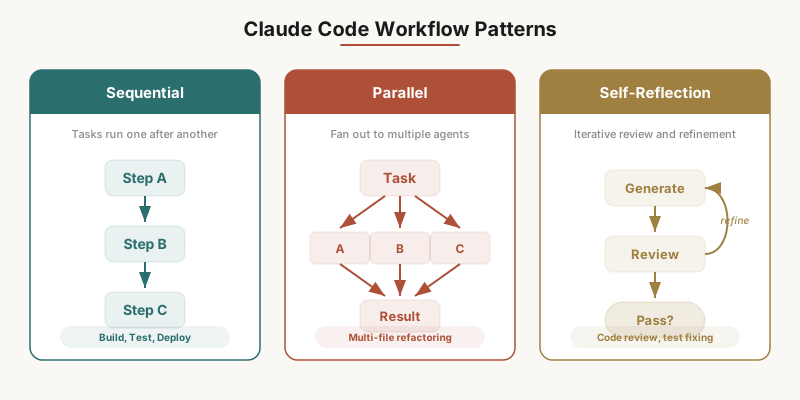
In practice, most production workflows combine all three. Sequential for the overall pipeline, parallel for independent subtasks within each stage, and self-reflection for quality gates between stages.
Step 6 Build Skills for Your Agents
Skills are pre-packaged prompts and tool configurations that equip agents with specific capabilities. Instead of writing the same instructions every session, you define a skill once and agents load it automatically.
A skill file lives in your project and follows a simple format:
name: code-review
description: Reviews code for security, performance, and style issues
allowed_tools: Read, Grep, Glob

---

You are a code reviewer. Analyze the provided code for:
1. Security vulnerabilities (injection, XSS, CSRF)
2. Performance issues (N+1 queries, memory leaks)
3. Style violations against the project coding standards
4. Missing error handling

Report findings as: CRITICAL, WARNING, or INFO.
The key benefit is token savings. Without skills, you spend tokens re-explaining context every session. With skills, the context is pre-loaded. Over a week of daily development, this saves thousands of tokens and eliminates instruction drift where the agent gradually forgets your preferences.
Build skills for your most common workflows: code review, testing, deployment, security scanning, and documentation generation. Each one should be specific enough to be useful and general enough to apply across your project.
Step 7 Understand the Memory Layer
Claude Code has three memory tiers, and understanding how they work together is essential for maintaining session continuity.
In-context memory is everything in the current conversation. It is active, detailed, and temporary. When the conversation ends or context is compacted, this memory is compressed or lost. This is where your real-time work happens.
Auto memory is what Claude Code retains automatically across sessions. When you tell Claude to remember something, it saves to the memory system at ~/.claude/projects/. This persists between conversations but has a 200-line limit. Use it for stable facts: your name, your role, project preferences, key decisions, and corrections to Claude's behavior.
CLAUDE.md is your persistent base. It is always loaded at the start of every session, no matter what. This is where your project architecture, tech stack, directory structure, coding patterns, test accounts, and phase history live. Keep it current and comprehensive, because this is the foundation that every session builds on.
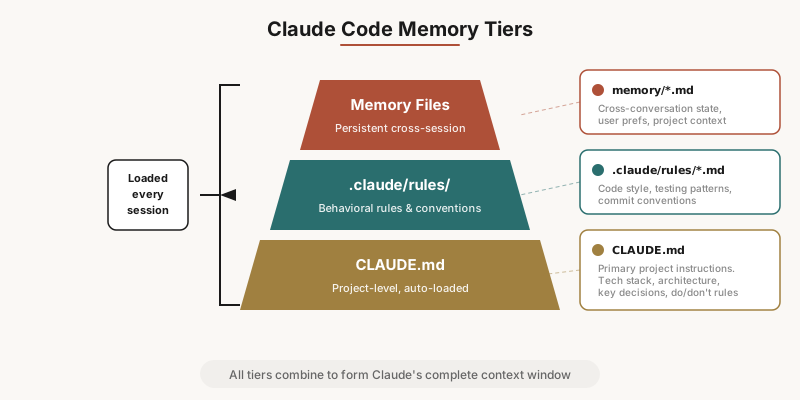
The interplay between these three tiers is what creates the illusion of continuous memory. CLAUDE.md provides the foundation. Auto memory fills in the personal details. In-context memory handles the active work. When context compacts, the hooks save a session report so the next session can pick up exactly where you left off.
The Complete Picture
Get all seven steps right and you have an AI development environment that actually works:
- 1.Right tool for the job. Claude Code for building, Claude AI for research, Cowork for documents.
- 2.Proper installation with /init to generate CLAUDE.md.
- 3.Structured project with .claude/rules/ and Claude Management/ directories.
- 4.Hooks for security checks, session reports, and plan archival.
- 5.Workflow patterns that match your problem: sequential, parallel, or self-reflection.
- 6.Skills that pre-load context and save tokens across sessions.
- 7.Memory tiers working together for true session continuity.
Most people skip steps three through seven. They install Claude Code, start prompting, and wonder why it forgets everything between sessions. The setup is the difference between fighting the tool and letting the tool fight for you.
If you want the actual template files for every step in this guide, including a ready-to-use CLAUDE.md, settings.json, rules files, and session management hooks, we have built an interactive setup checklist with downloadable templates. Sign up for a free account and access it from your dashboard under Claude Setup.
The best time to set this up is before your next project. The second-best time is right now.
Get posts like this in your inbox
No spam. New articles on AI strategy, governance, and building with AI for small business.
Keep Reading
Tutorial: How to use Claude Code to automate your weekly reporting in one afternoon
You spend Friday afternoon compiling numbers from three systems into a report nobody reads until Monday. Here is how to automate the entire thing and get your Friday back.
How to set up CLAUDE.md for your project: a practical guide with real examples
CLAUDE.md is the file that tells Claude Code how to behave in your codebase. Here is exactly what to put in it, what to leave out, and why the decisions matter.
What happens when you give a CEO Claude Code for a week. Five patterns I see every time.
I have trained over a dozen executives to use Claude Code. The same five things happen every time, in roughly the same order. Here is the pattern.